Learn how to create dashboard trackers for Enroll NYC here. You can either:
Trackers are filters you can create to quickly see which students have or have not completed a task. They may also be set up to allow you to easily update a student by dragging and dropping between tasks.
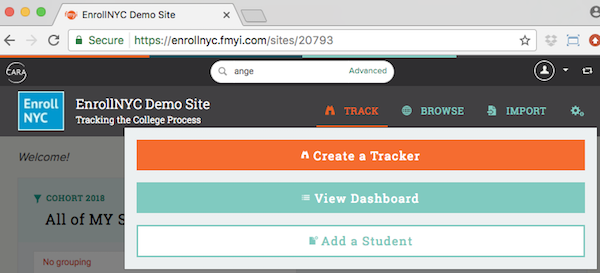
1: To begin, mouse over “Track” and click “Create a Tracker."
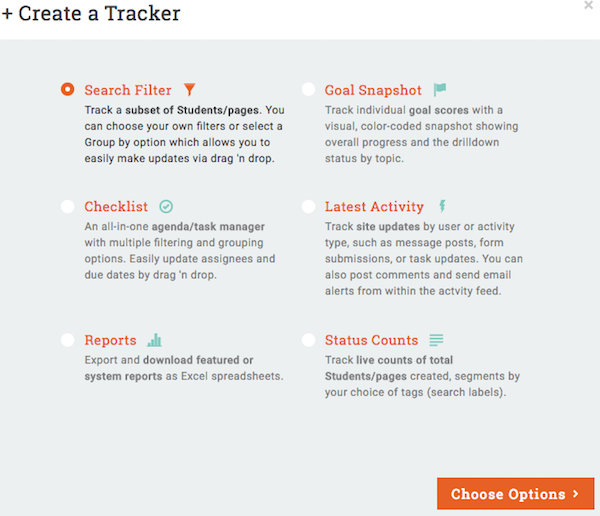
2: Next, select “Search Filter” and click “Choose Options.”
3: Now, name your tracker and select a “Group by” option.
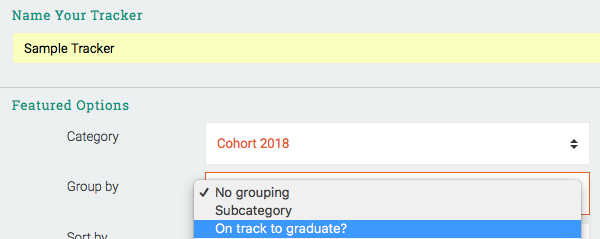
This allows you to drag ‘n drop a student from one status to another. For example, you can drag a student from the blank column to Yes for many of the tasks on the checklist.
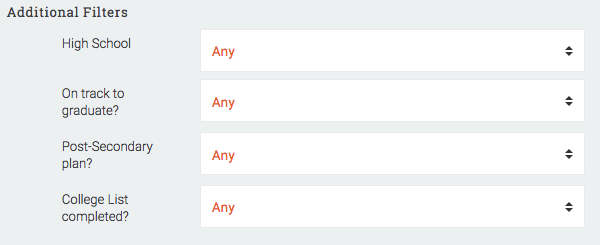
4: Then, choose the task to filter by. NOTE: to make drag ‘n drop updates, leave all the filters unchecked.
5: If you want all coaches to see your new tracker, scroll down and check “Require and show this tracker for Everyone.
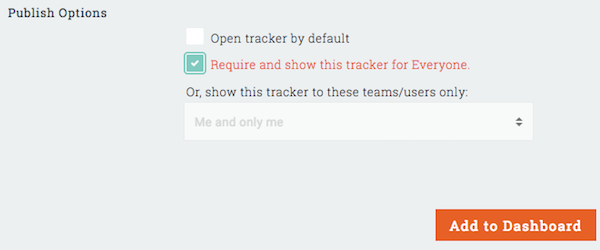
6: Finally, click “Add to Dashboard” to finish.
Comments