Learn how to import data to forms in Enroll NYC™ here. You can either:
1: First, complete the Excel template from your Enroll administrator. If you have another file with similar information, you must cut and paste the information into the Excel template. NOTE: the fields are case sensitive.

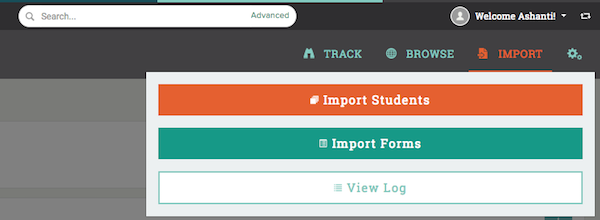
2: Now, go to “Import” and click “Import Forms” to begin the upload process.
3: Find the correct data type, such as “Cohort 2018”, and then select the correct high school under "subcategory" if there are multiple schools on your site.
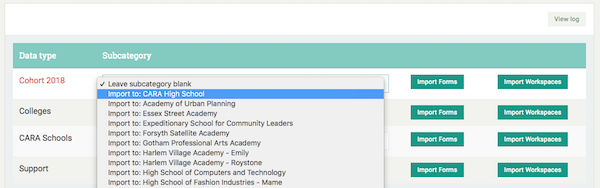
4: Next, select "Import Forms".
5: Upload the file you just updated.

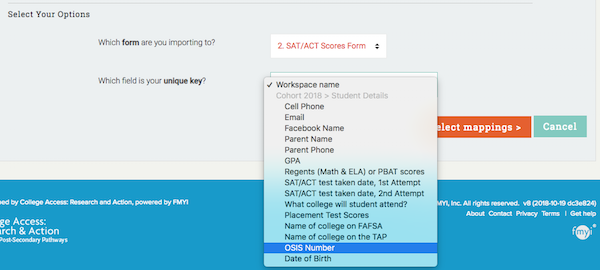
6: Then, select the form you want to import, such as “SAT/ACT Scores Form.” Next, select “OSIS Number” as your unique key and click "Select mappings".
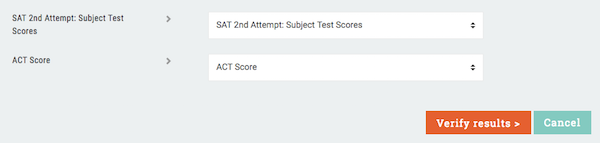
7: Before continuing look under “Column Mappings” to make sure the names in the left column match the selection in the right column. Then, click on “Verify results.”
8: Click "Finish" to complete the upload process.
Comments